Your business may already be showing up in ChatGPT. Here's how to claim it.
Updated November 11, 2026. Business Hub is changing quickly, so screens and steps may differ from what you see.
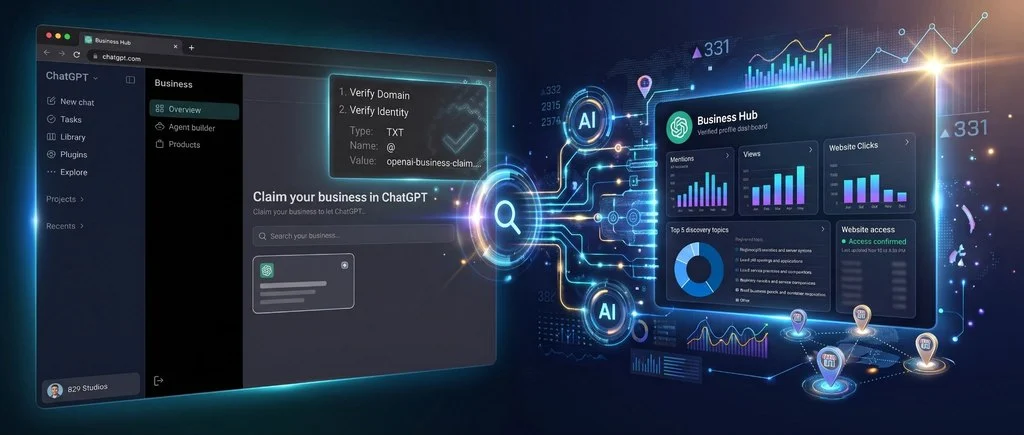
For the last decade+, local visibility meant keeping your NAP (name, address, phone) consistent across a variety of local platforms: Google My Business, Apple Maps, Yelp, and a long tail of other mostly defunct directories. ChatGPT now has its own version of that management layer, designed for brands and businesses to control attributes associated with their business directly, as opposed to letting the swarm of robots jump to conclusions. OpenAI calls it Businesses in ChatGPT, managed through a brand new (as of November, 2026) portal called the Business Hub. This hub lets you claim your business, control the details (NAP + a few more items), and upload product feeds (presumably for both organic and paid product recommendations).
The most exciting part about this shift is its the first view over the wall into ChatGPT first-party data around your brand and business.
We started claiming locations the day Business Hub launched, and in the last 24 hours, we’ve worked with a handful of clients (and our own locations) to figure out how the process works. The process is pretty simple, although there are some caveats for large businesses, brands, and agencies.
Update 11/12/26:
Attempting to verify multiple businesses / locations in a short time frame results in a rate-limiting error when confirming DNS. If you have multiple locations…. space it out.
The short version – claiming your business
- Head over to chatgpt.com/business-hub as a logged-in user and search for your business location.
- Select the proper listing and click Get Started. Most businesses will have seeded listings; for newer businesses or entities, you may need to start from scratch.
- Verify you control the domain by adding a DNS TXT record (or verify by phone).
- Verify your identity and business details through Persona, OpenAI’s third-party verification service.
- Complete your profile – some fields, like editing the website, require another round of DNS verification.
| At a glance | |
|---|---|
| Hands-on time per location | ~15 to ~30 minutes |
| Paid ChatGPT account needed? | Nope! |
| Domain verification | DNS TXT record, or phone |
| Identity verification | Government photo ID and selfie video, via Persona, additional corporate details like EIN |
| Review time in our tests | 7 to 15 minutes, some instant |
| Multi-location bulk tools | Nope, not yet 🙁 |
Why it’s worth claiming your listing
There are four reasons we think this matters.
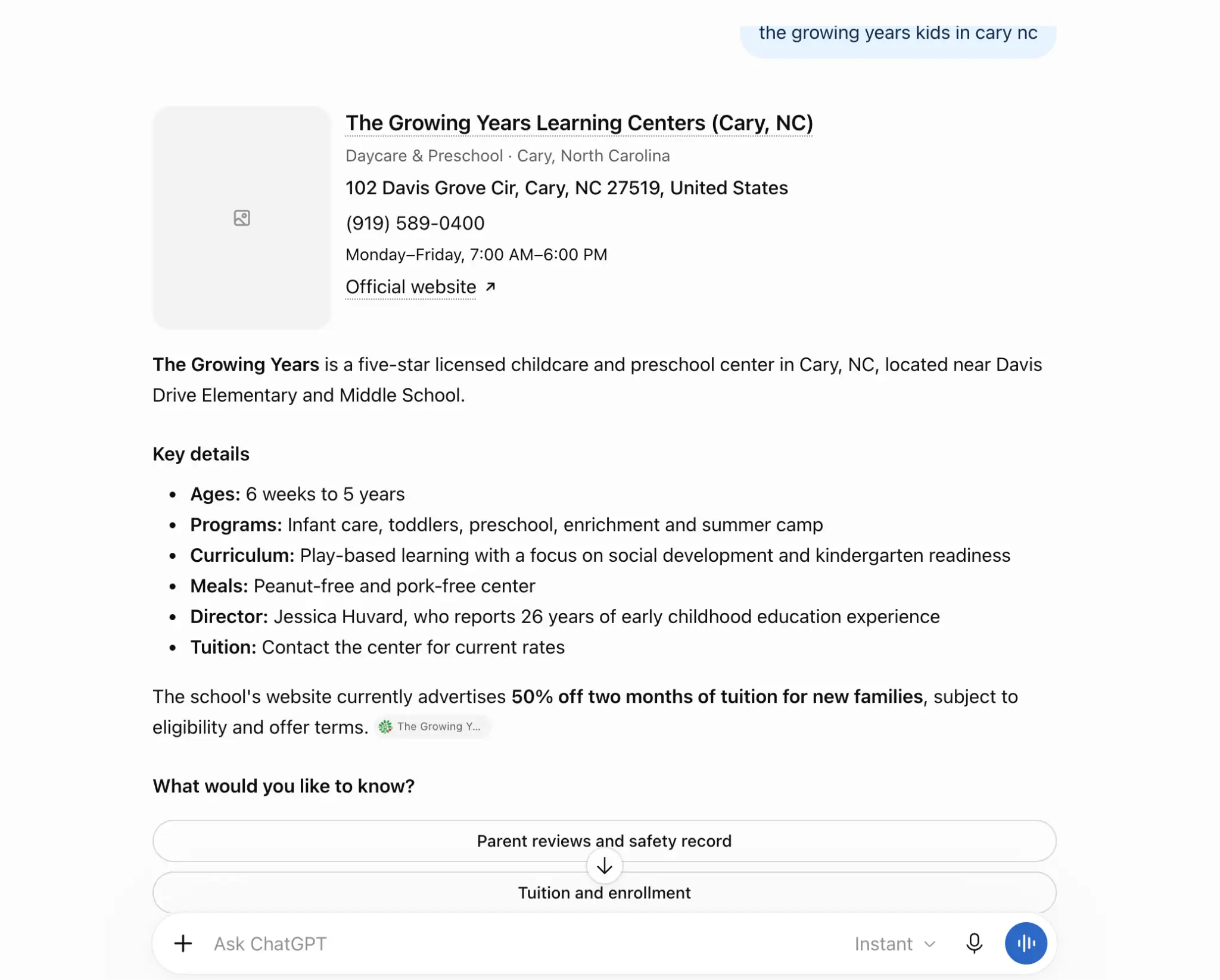
- NAP consistency is BACK. It still matters, and we know that ChatGPT shows information about your business whether you claim the profile or not. They pull data from a variety of sources, and sometimes it just ain’t the right info. ChatGPT’s own docs and Policies confirm this.
- More control over your brand in this ChatGPT. Specifically, photos, hours, and business descriptions. You can even add a UTM to your web link (yes, I know, and it works).
- First party data. Its limited right now, more on that below.
- Additional tooling. Right now, Business Agents are in a limited rollout to select businesses. Soon enough, any business will be able to use tools like this through the Business platform.
To be clear on expectations, ChatGPT is pretty clear that claiming doesn’t guarantee ranking improvement. Claim it to get the right info for now.
“We already syndicate through a provider like Yext. Aren’t we covered?”
Not entirely. At 829 Studios, we manage thousands of listings for clients, with many of those using tools like Yext. In our experience, most syndicated listings come through with accurate data — but syndication doesn’t claim your listing or verify it. That’s separate and what all businesses should do.
Firsty-party data is the real win
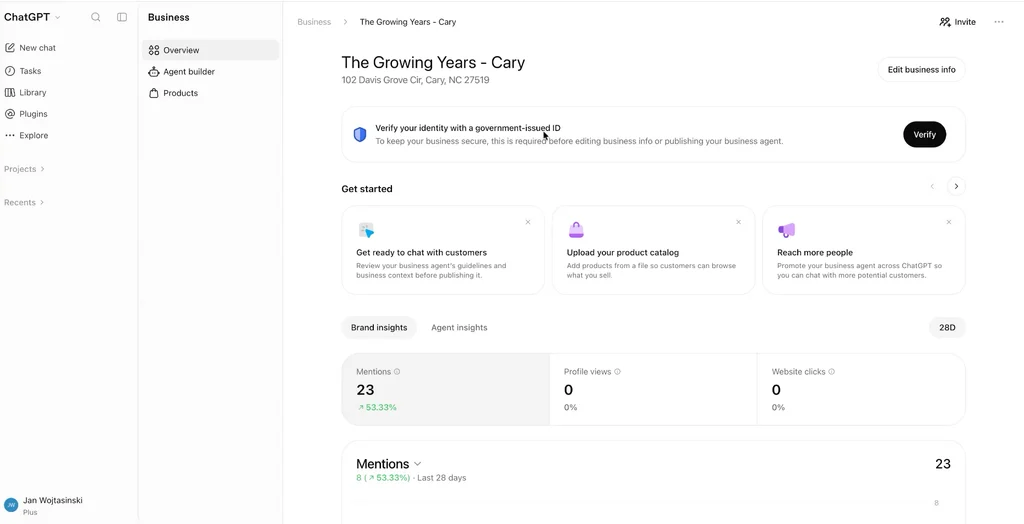
Once a location is verified, you start to get (admittedly limited for the time being) info on your business’s mentions, views, website clicks, etc. You additionally get some details on things like discovery topics, conversation themes, and where your business is showing up.
At 829, we use a variety of tools and technology, such as Profound, to do this for clients. The tools come at a cost, and they are all third-party. Augmenting those prompt and citation tracking tools with legit first-party data is huge for all brands, and especially helpful for small businesses that might not have the cutting-edge third-party tools. Pair discovery topics with click data and a UTM on your listing link, and you start to see a much more complete picture of how consumers are interacting with your brand.
IMO, we’ve seen a similar pattern play out with Google. Google Search Console and Google Business Profiles didn’t launch as the tools they are today. They matured largely alongside Google’s ad business, presumably because better data for site owners and advertisers tend to come from the same infrastructure. We expect Business Hub to follow a similar path (with some additional bells and whistles like agents).
Beyond basic insights, the tooling is admittedly thin. You can edit details, add products and feeds, and potentially access Business Agents if you are part of what seems to be a rolling pilot. The largest gaps are for multi-location brands — verification and claiming are painfully manual right now if you have a bunch of locations.
How to claim and verify a location, step by step.
Before you start, gather everything you need so you don’t get stranded mid-process.
- DNS access to the locations domain, or access to the locations phone line. We strongly prefer DNS and admittedly have not gone the phone route.
- A government-issued photo ID (we used a driver’s license) and a phone with a camera for a short selfie. Note that this goes through a third party, presumably not to Sam Altman.
- Business tax details: For corporate entities, this is your EIN, legal entity name, DBA, and registered address. We did not verify a sole proprietorship, but it’s safe to assume it’s a tax ID or Social Security number.
- The locations details: correct NAP, hours, category, and a few good photos.
Good news, you don’t need a paid ChatGPT account.
Step 1: Get into Business Hub
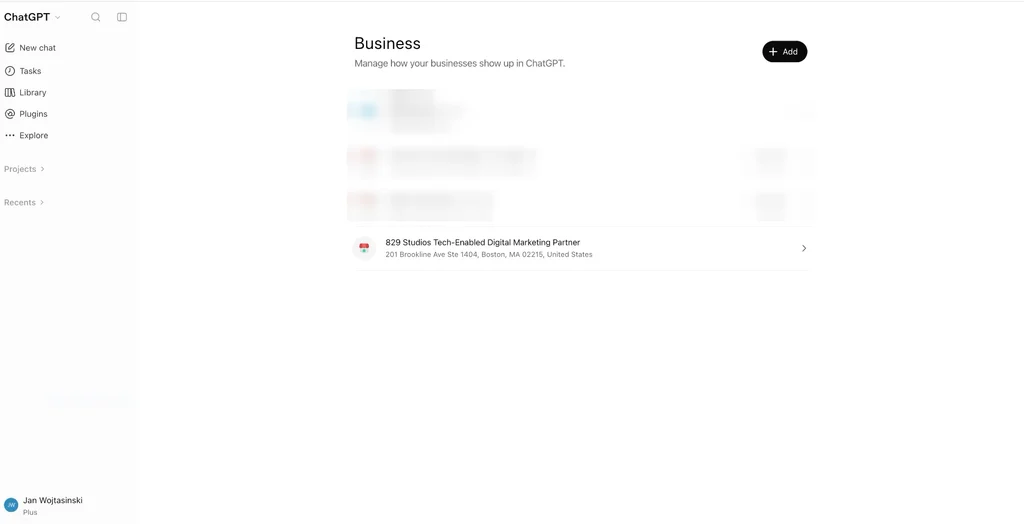
Business Hub doesn’t magically appear in ChatGPT by default until you claim a business or start verification; the “Business” link does not show up in the sidebar. The easiest way we found was to navigate here: https://chatgpt.com/business-hub. After your first claim, a “Business” menu item appears in the sidebar under Explore.
Step 2: Search for an select the business
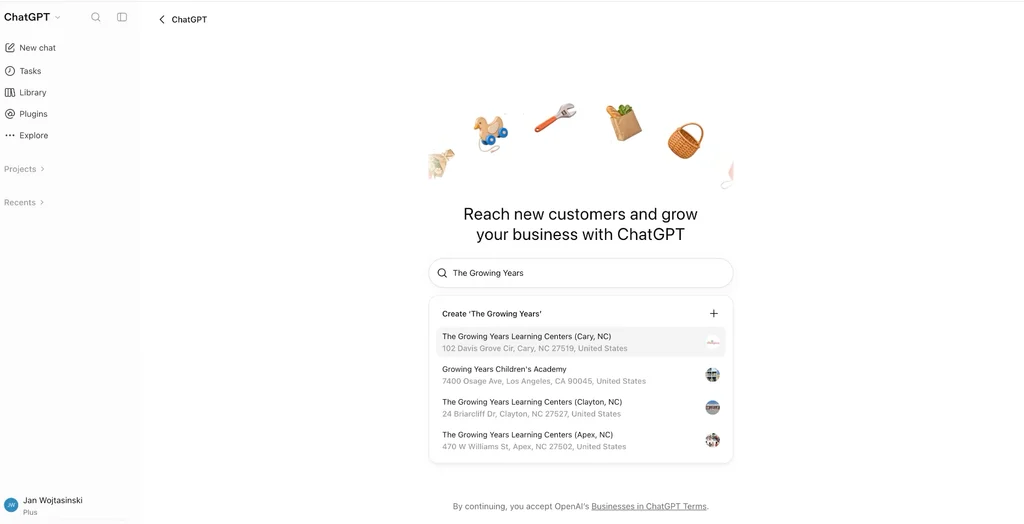
Use the search function to find your business. No bulk upload, sorry. You can search by name, address, or website.
Check what comes back. If you syndicate through a platform like Yext (or your agency does), your info is likely in there and accurate. If your location has been picked up through a third party like Yelp, there are likely some gaps in the data. Select the business and click Get Started.
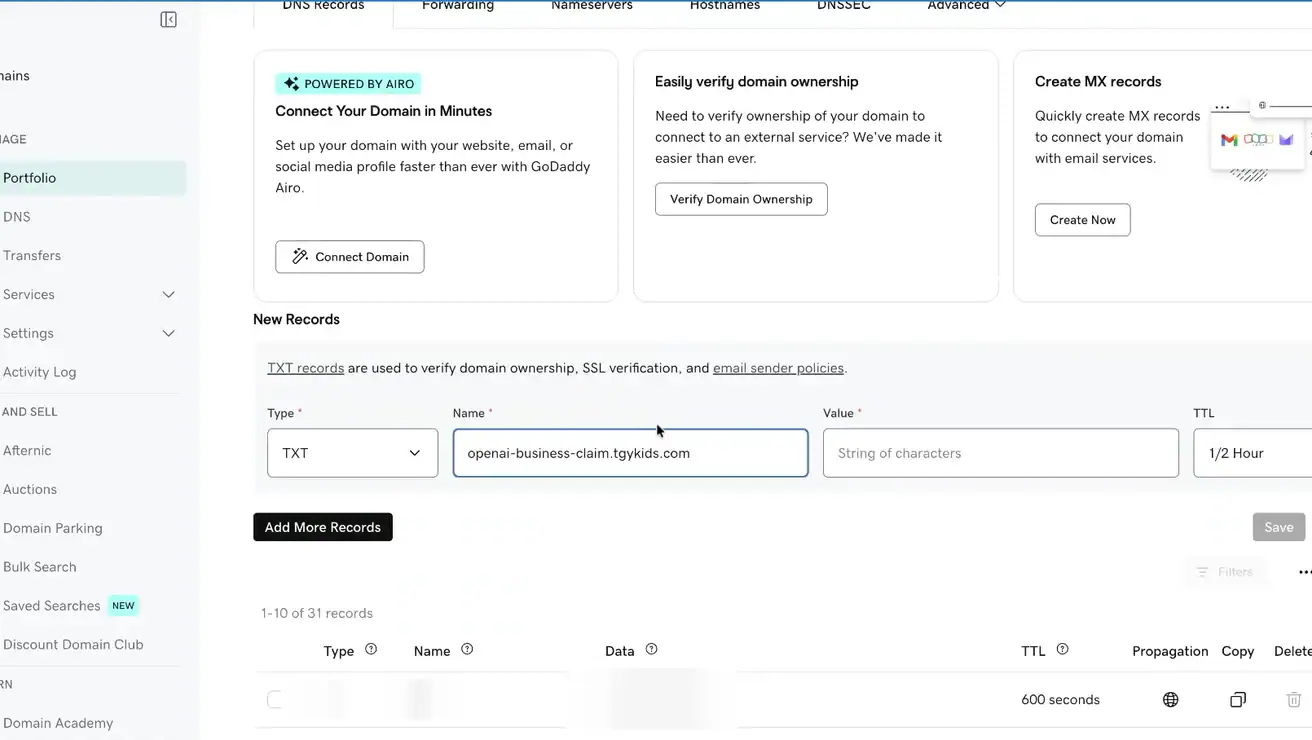
Step 3: Verify your claim (DNS Record #1)
You’ll be asked to verify by phone or by domain. Choose domain if you can.
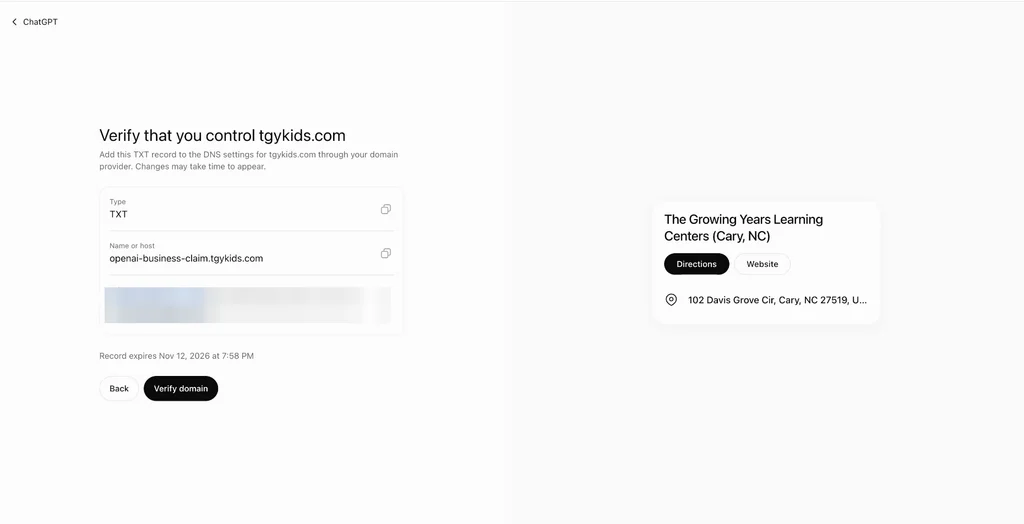
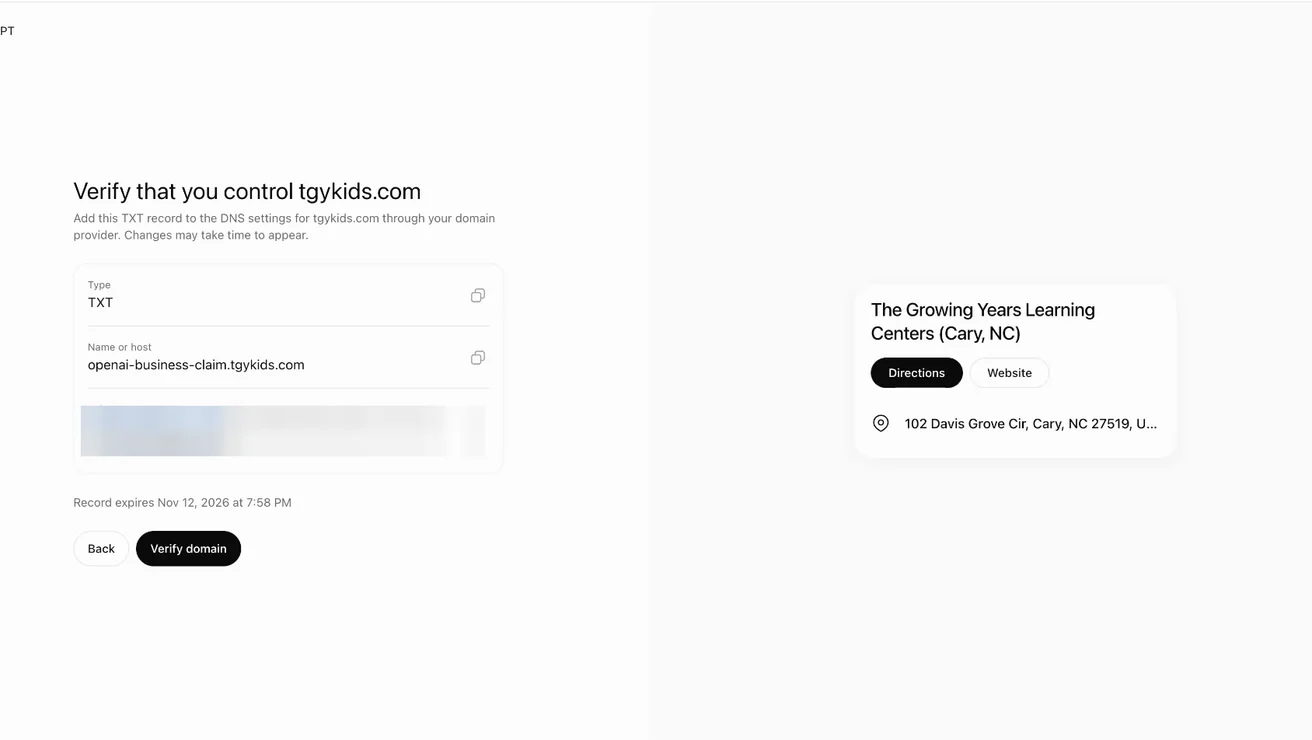
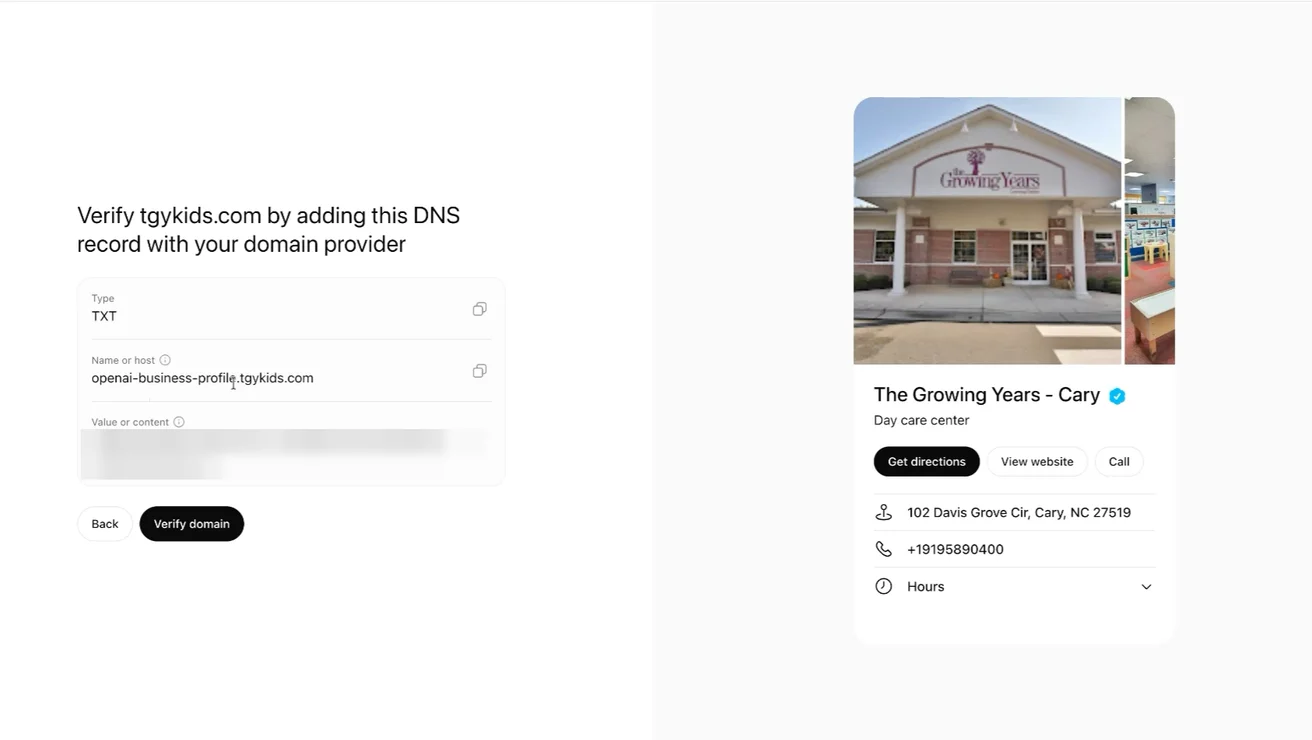
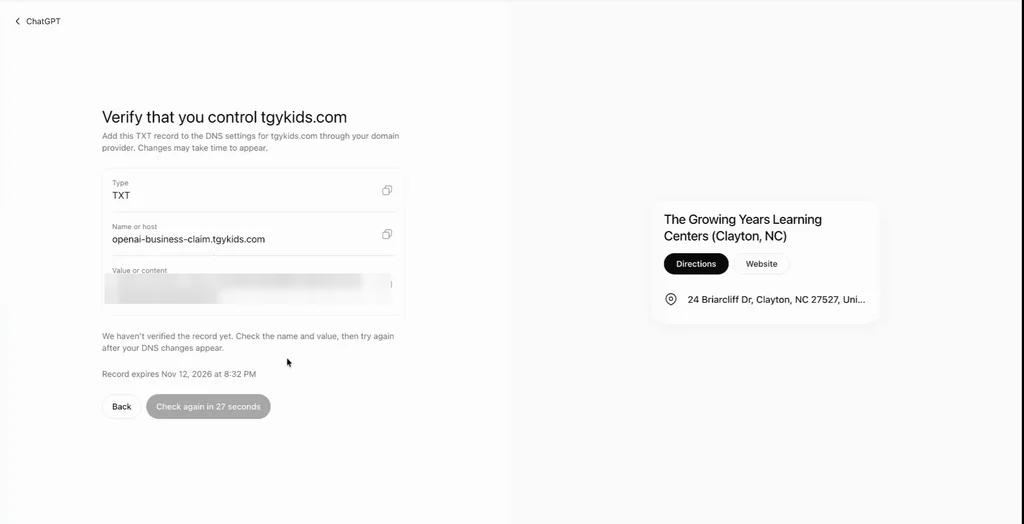
ChatGPT gives you a TXT record: a name (the “business claim” record) and a value. In your DNS provider: Create a new TXT record, paste in the name and value provided by ChatGPT, set the TTL as low as allowed, and add a comment so you can remember what this record is later.
If DNS is new to you, hand this to whoever manages your domain. Adding a TXT record is low risk, but other DNS changes can take a site / email / other systems down.
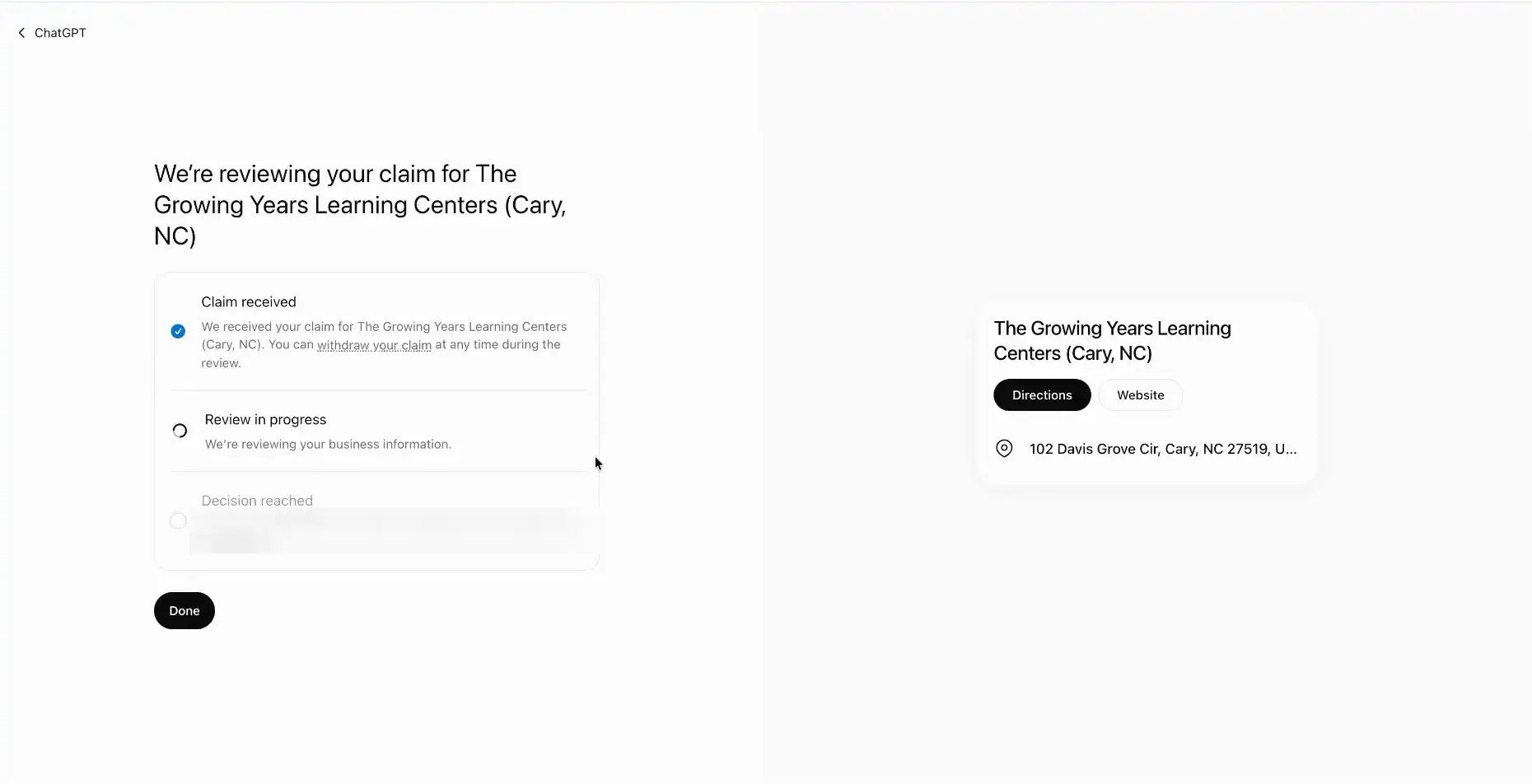
Back in ChatGPT, click Verify Domain. It will likely go through right away and send you to a verification-pending screen. If it doesn’t, wait a few minutes for the DNS to propagate and refresh the verification.
Note that the verification records expire from ChatGPT after 24 hours so if you are submitting the record to some deep dark IT queue to implement maybe pick up the phone and call them
As a quick heads-up, we did not receive any email notifications when locations were verified. Either do it all in one go, or maybe set a reminder if you step away for a cup of coffee.
Step 4: Verify your identity and business details
Once you pass that first verification, you can now click into the listing.
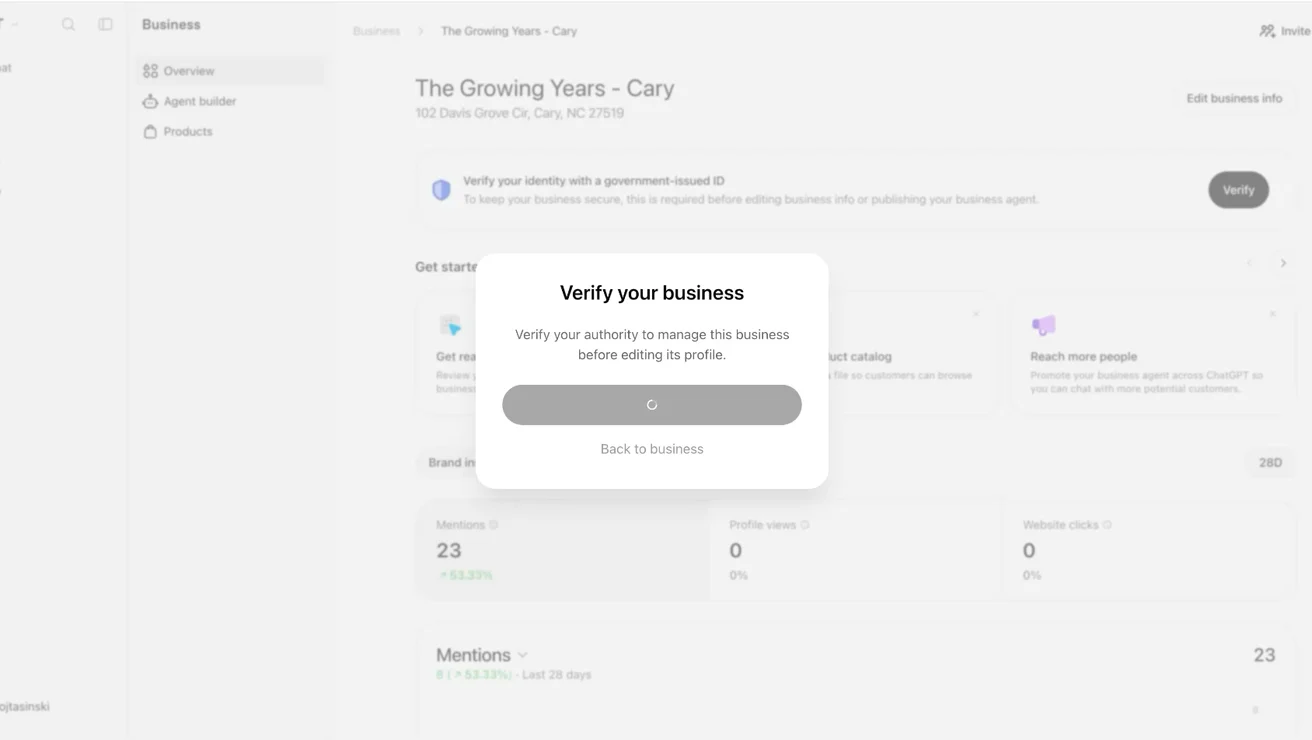
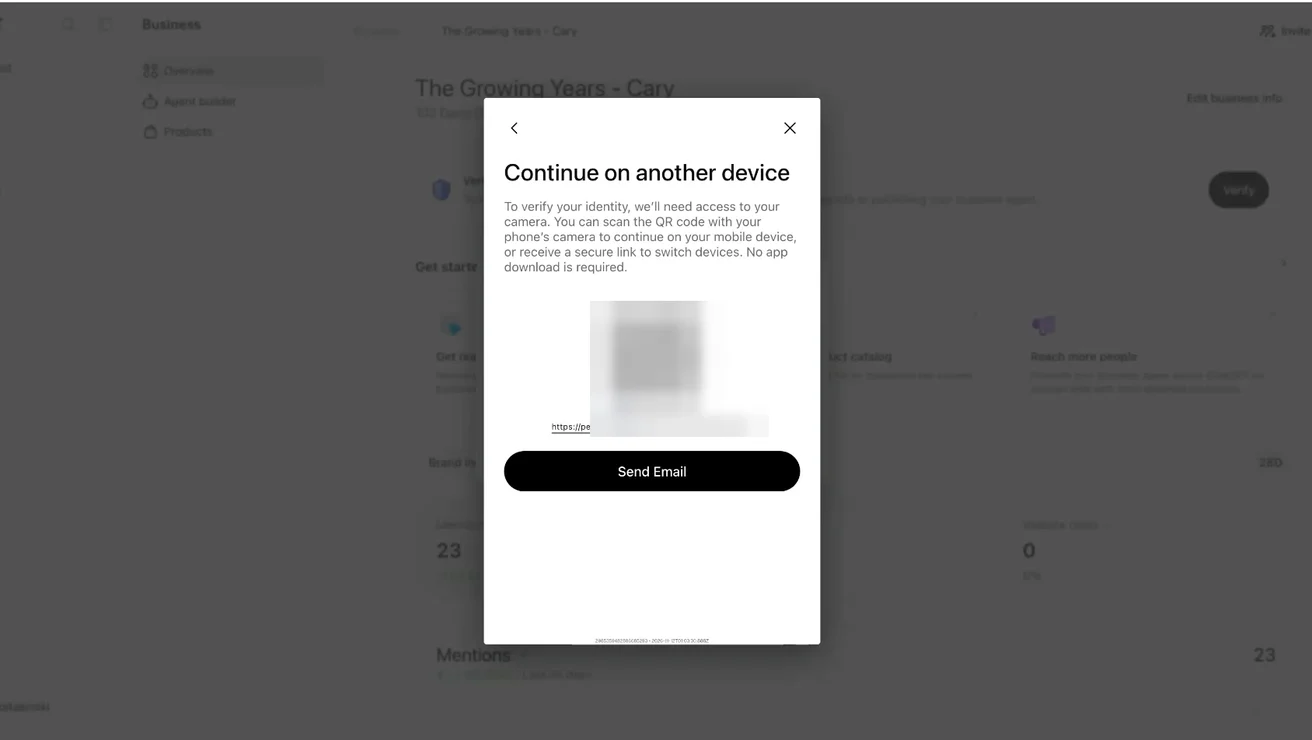
Before you can edit the profile, you need to complete business identification and verification. This runs through Persona, a third-party identity verification service. If you’ve opened a bank account online, it’ll feel familiar.
You’ll need to photograph your ID, do a visual verification via phone, then confirm a bunch of business details such as type (entity vs. sole prop), registration number (have your EIN ready), and the legal address.
The business name and website come from the existing listing and can’t be edited here. For 829, the name came through from Yext and wasn’t our legal entity name, and verification still went through.
You’ll repeat this for every location, even under the same brand and the same person. If you have a lot to do, batch them. It’s not fun or glamorous work. There is, however, a weird satisfaction in verifying a business listing.
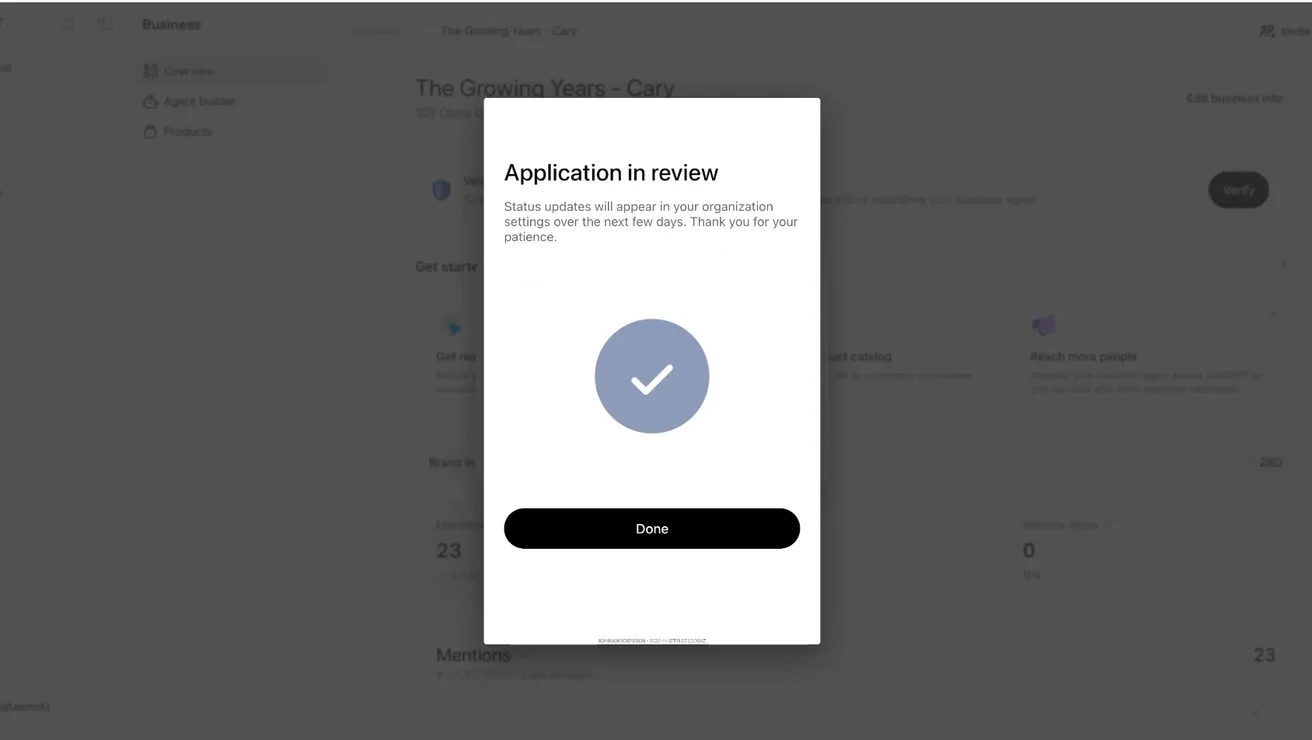
Step 5: Wait for review
At this point, it’s in OpenAI’s hands. There’s nothing to do but reload and check the status next to the business in Business Hub: pending or failed. Across the 10+ locations we’ve done, reviews cleared in roughly 7 to 15 minutes, and some were accepted almost instantly. We didn’t get an email or in-app notification for any of them.
We hit a small UI glitch where a location looked accepted but still needed a click on Continue verification to refresh its status, so if something looks off, click back in. Once that verification bar disappears from the listing itself, you have passed the second test.
On our end, one verification failed, with no detailed error. It was a business that had no prior data in ChatGPT, and our best guess is that the business name and DBA didn’t match closely enough. If a verification fails, there’s no appeal step in Business Hub that we could find. OpenAI has a Business Hub feedback form, but we wouldn’t count on a fast response.
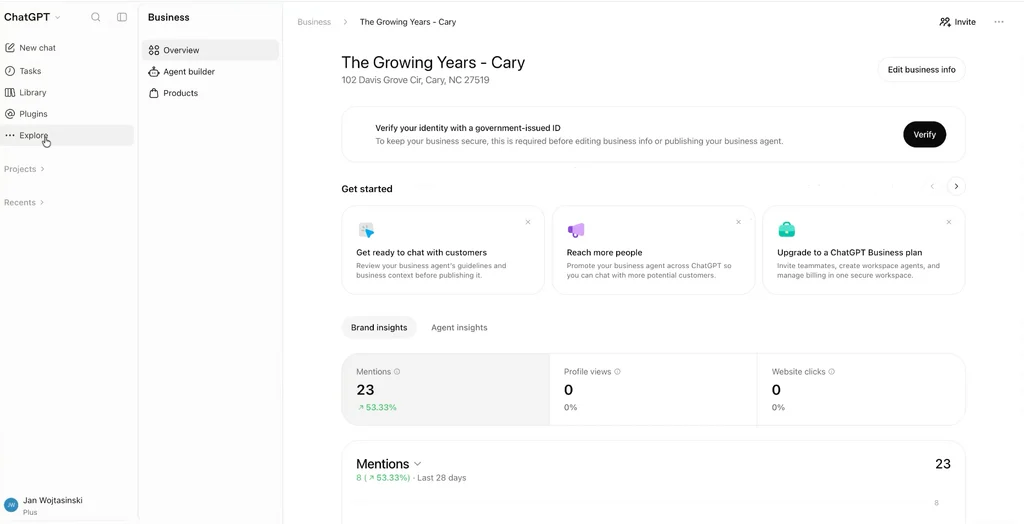
Step 6: Complete the profile
Once verified, fill out the basics:
- Category: Match your primary Google Business Profile category. If your team or agency has already researched and optimized your GBP categories, reuse that work.
- About: Optional. It isn’t clear yet how ChatGPT uses this beyond the profile itself, but it’s a place to add context.
- Phone and email: Confirm the phone number against the location’s landing page.
- Photos: Upload a few branded images and put the most relevant first. JPEG and WebP both worked for us and we ripped them down from owner provided photos on Google Business Listings.
- Location: Confirm the address and map pin. For anyone using ChatGPT to find services nearby, this is the field that matters most.
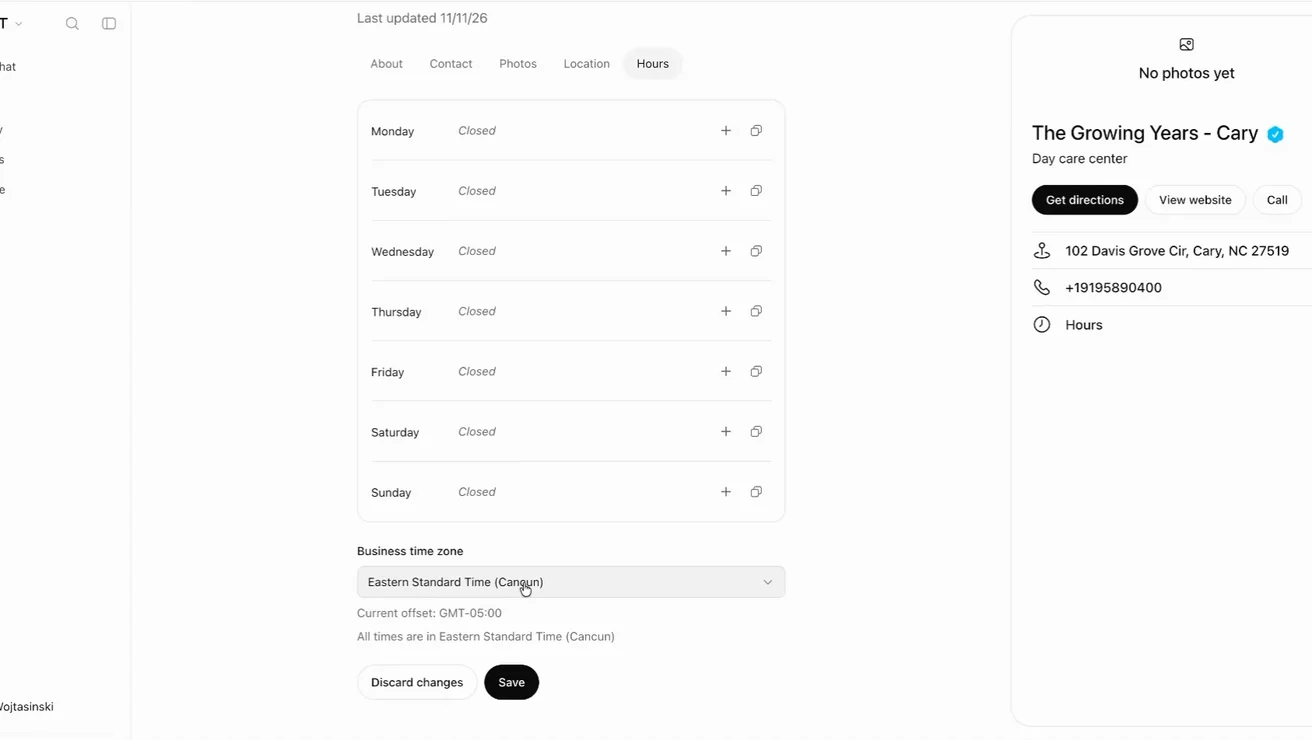
- Hours: Set the time zone (there’s a search function) and match your hours to your Google Business Profile.
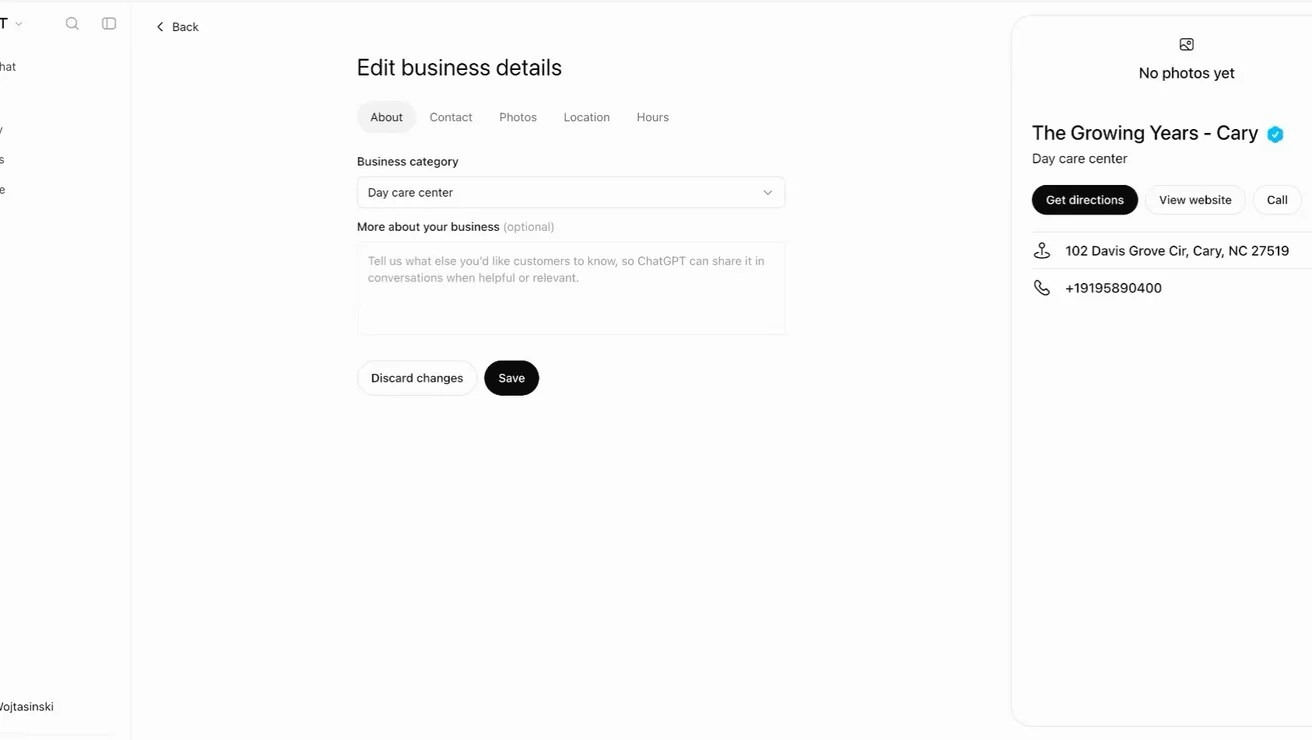
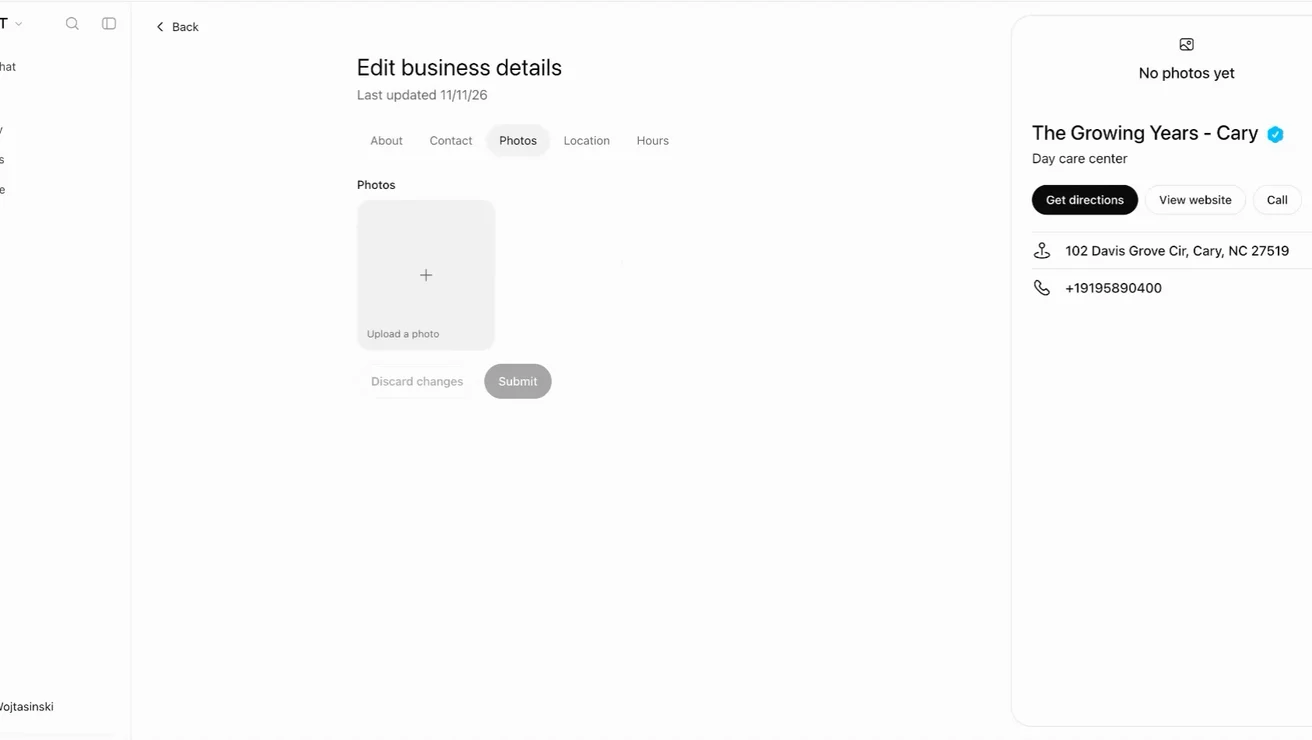
Step 7: Verify again to edit sensitive fields (DNS record #2)
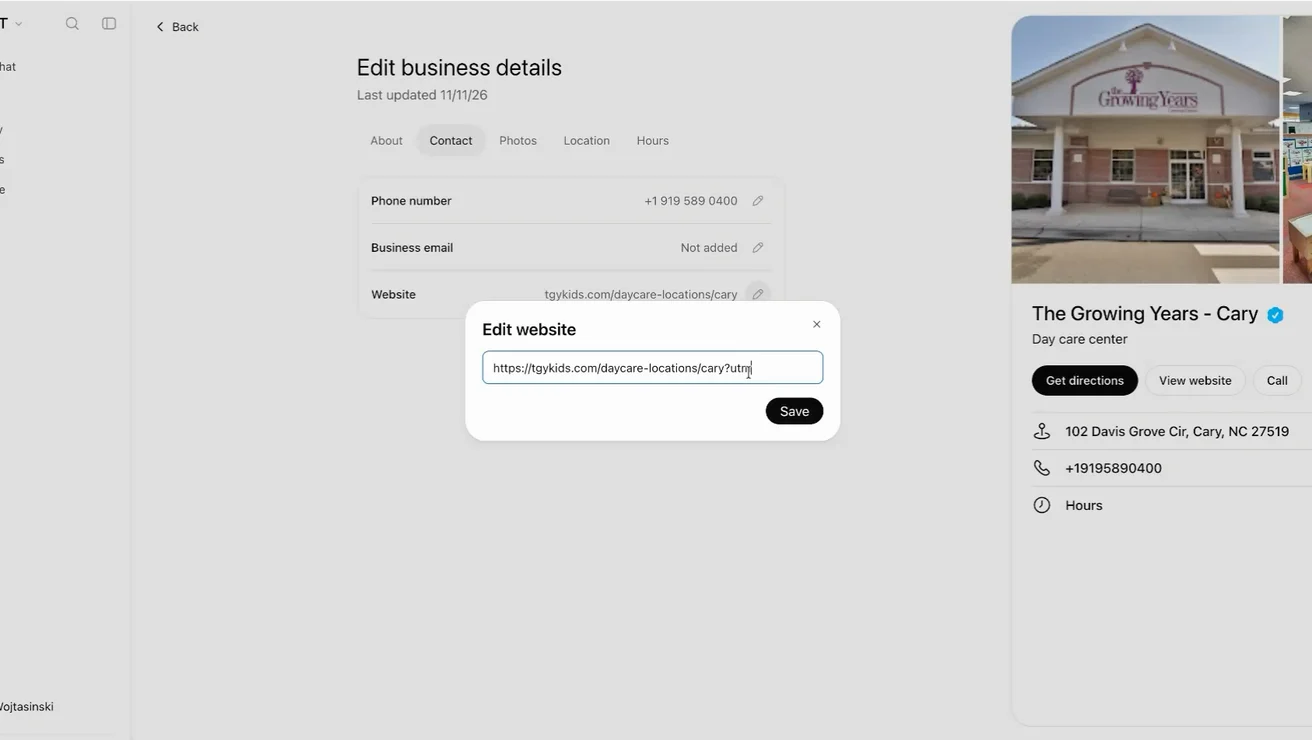
Some fields are treated as sensitive, and editing them triggers a second domain verification (yes, another DNS edit). We hit it when changing the website URL, and that’s the only field we’ve seen trigger it so far. It’s safe to assume edits to your name, address, or phone number will, too.
We recommend doing this so you can add UTM parameters to the website link and track traffic from your ChatGPT listing. We use:
?utm_source=chatgpt_business&utm_medium=listing
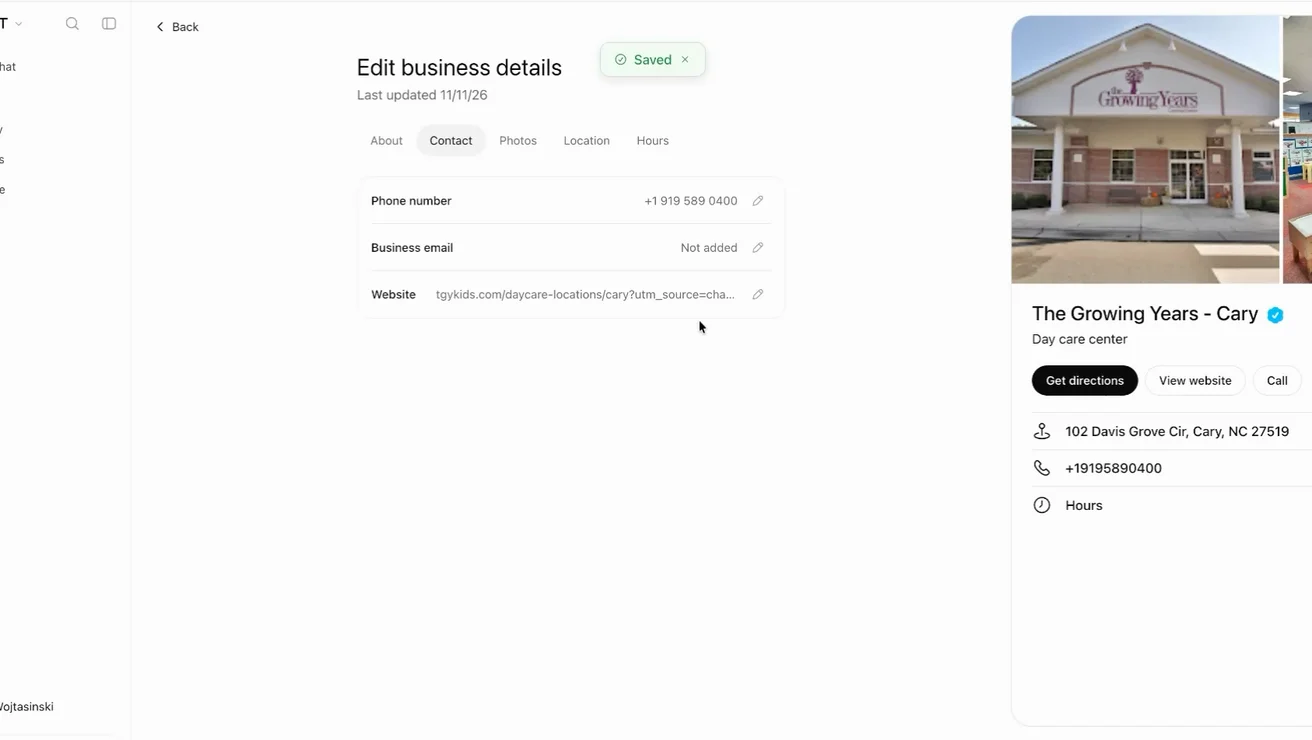
We’ve confirmed the UTMs carry through and show up in downstream analytics tools like GA4, Adobe, etc. Who knows if this will last, as ChatGPT has had these regressions in the past.
When you save, ChatGPT asks you to Verify the domain and gives you a new TXT record. This one is a profile record, not the claim record from Step 3, so add it as a separate entry. After saving, wait a minute or two before clicking Verify domain again. Once it clears, the website field updates.
If you’re not changing your website, you may not need this step. IMO, doing this all at once avoids the heartache of having to do it later.
Adding more locations
Each additional location goes through the same process as Step 2, including a claim TXT record and identity verification.
If your additional locations all share the same domain, you can, in fact, add multiple TXT records with the same name. In this instance, the verification is not shared, so adding more TXT records is totally fine. For large brands with hundreds of locations, I would not do this, as it will create a mess in your DNS, so doing them in batches would likely be best.
If your DNS provider won’t let you add multiple TXT records with the same name, there are two fallbacks:
- Set TTLs as low as your provider allows before you start. Some go as low as 600 seconds (10 minutes) and just rotate the record values out.
- Use phone verification instead. Many multi-location businesses run an IVR or central phone system that can route calls and texts to specific numbers. If you can intercept verification calls or texts at the location numbers, that may be faster than DNS. We haven’t tested this route yet with ChatGPT but do it regularly with IVRs or call tracking solutions like CallRail or CallTrackingMetrics.
FAQ
Nope! A free account works.
OpenAI says claiming does not guarantee higher placement or sales. It gets your information right and gives you access to the data — in our experience, profiles that are more complete and consistent tend to improve results.
In our tests, it took 7 to 15 minutes per verification step, sometimes instantly. OpenAI says it can take up to a few days.
There’s no appeal step in Business Hub that we could find. Support can be directed to the OpenAI feedback form.
No. Syndication sends your data to ChatGPT, but you still have to claim and verify the listing yourself, and we strongly recommend you do this as a best practice.
Final thought
Businesses in ChatGPT are in the early stages; let’s celebrate the win of better tools for businesses, even if some of the polish, like multi-location verification, is not quite there yet. This is the first time OpenAI has given brands a way to correct what ChatGPT says about them, and most importantly, the first chance to view data on how your brand shows up on the platform. Claiming your listing is relatively quick, and it puts you in a good position as the platform continues to mature and grow.